How to Export Your MyFitnessPal Data (Food Log and Weight)
 ChatGPT
  Claude
  AI Mode
  Perplexity
MyFitnessPal's built-in data export is a Premium feature. It emails you three CSV files: meal-level nutrition, weight and measurements, and exercise. Free accounts get a printable website report, diary sharing, and a privacy Transfer Request that costs nothing and that MyFitnessPal must answer under privacy law in most regions. None of the routes give you custom foods, recipes, or individual food rows.
TL;DR - Export Your MyFitnessPal Data
- Premium export: iOS More > Nutrition > Export; Android export icon on Progress or Nutrition; web Reports > Export. Three CSVs arrive by email.
- Free route 1: myfitnesspal.com > Food > View Full Report (Printable), then save as PDF.
- Free route 2: Transfer Request at the MyFitnessPal Privacy Request Center. Free, slow, legally backed.
- Weight history: Apple Health or Health Connect carries it to any new app if syncing was on.
- Check sync first: unsynced phone entries are not in any export.
- Order of operations: export, then cancel, then delete. Never the other way round.
NutriScan publishes this post, and we make a competing app.
Many people who have logged for years suddenly want their history in their own hands. That instinct is sound. A 2025 randomized trial of 502 adults found that higher adherence to digital dietary self-monitoring predicted clinically meaningful weight loss, with each step up in adherence raising the odds of losing at least 5 percent of body weight by about 25 percent (Burke et al., 2025). Those logged days are the record of a habit that worked. Losing them to a forgotten password or a deleted account is a genuine loss.
MyFitnessPal does not advertise this loudly: the built-in data export is a paid feature. Their own help page states that "Data Export is available to Premium and Premium+ subscribers" (MyFitnessPal Help). Free account holders get a different set of options, and one of them, the one almost nobody uses, is stronger than the paid export in a specific way.
Here is what this guide walks through, in order:
- ☐ What is actually inside the export, and its two limits
- ☐ Route 1: the Premium export on iOS, Android and web
- ☐ Route 2: the free printable report
- ☐ Route 3: the privacy request that costs nothing
- ☐ Route 4: carrying your weight history through the health platform
- ☐ The one thing none of the four routes give you back (most people find out too late)

Your food log, on its way out. Sync first, then export.
What Is Actually Inside a MyFitnessPal Export 📦
Every Premium export delivers three CSV files inside a single zip folder, emailed to you. According to the help page, they break down as:
| File | What it contains |
|---|---|
| Meal Level Nutrition Details | Calories, macronutrients, micronutrients and timestamps for logged foods, summarized by meal, plus any food notes |
| Progress History | Logged measurements such as weight, neck, waist and hip entries |
| Exercise History | Workouts, step counts, daily calorie burns from a connected tracker, plus exercise notes |
Two limits are worth reading twice. First, the nutrition file is summarized by meal, not by individual food item. MyFitnessPal staff confirmed this in their own community forum: "At this time we don't offer a way to export individual food items to CSV" (MyFitnessPal Community). If you wanted a line for every banana you ever logged, that is not what arrives.
Second, you cannot pick and choose. The help page FAQ answers "Can I choose which data to export?" with a flat no. Every export includes all three files. The one thing you do control is the date range.
Step 1: Check Your Sync Before You Export Anything
Do this first, always. Entries that live only on your phone and never reached MyFitnessPal's servers will not appear in any export, and they disappear for good if you uninstall the app.
MyFitnessPal's own instructions are specific. The last item in the More menu is Sync, and it displays the time of your last successful sync with their servers. Tapping it forces a fresh attempt. If the timestamp is stale, move to better wifi, force quit, or restart the device. Their help page adds a blunt warning: if the website and app still disagree, type the missing entries into the website diary by hand, because "uninstalling the app will remove any entries from your mobile device that have not synced over" (MyFitnessPal Help).
Log in at myfitnesspal.com on a computer and scroll through the last two weeks of your diary. If what you see there matches what your phone shows, your data is safely on the server and any export route will find it.
Route 1: The Premium Export, Platform by Platform
If you have Premium or Premium+, this is the fastest path. The steps differ slightly by platform, and they come straight from the help page.
On iOS:
- Open the MyFitnessPal app.
- Tap the More menu on the right of the screen. If there is no More menu, tap your profile icon in the upper right instead.
- Select Nutrition.
- Tap Export in the upper right corner.
- Tap Date Range and choose your dates.
- Tap Export My Information.
- Check your email for the file.
On Android:
- Open the app and tap the More menu.
- Go to the Progress or Nutrition page.
- Tap the export icon in the upper right. It looks like a sheet of paper with a folded corner.
- On the File Export screen, confirm your email address and pick a date range.
- Tap Export.
- Check your email.
On the website:
- Log in at myfitnesspal.com with the same email and password you use in the app.
- Click Reports.
- Click Export on the right side of the screen.
- Select a date range.
- Click Export.
- Check your email.
One detail decides whether this works at all: the file goes to the email address on your account, not to whatever address you happen to be reading right now. MyFitnessPal states the export is sent "to the address you used to sign up, unless you update it in Email Settings before exporting." If you signed up years ago with a college address you can no longer open, fix the email in settings first, then export.
Download and Open the Files Without Corrupting Them
The email contains a Download Files link. MyFitnessPal recommends using a computer rather than a phone for this step, and that is good advice, because unzipping and inspecting a CSV on a phone is awkward and some mobile mail clients will simply refuse the attachment.
Unzip the folder. On a Mac, double-click it. On a PC, drag it to the desktop first, then double-click. Inside you will find three files named Your Progress, Your Exercise and Your Nutrition.
A CSV is a plain text table where commas separate the values. Excel, Apple Numbers and Google Sheets all open them. Two practical warnings from years of watching people do this:
- Do not open, edit and re-save a CSV casually in Excel. Excel likes to reformat dates and can turn a clean export into something a new app refuses to read. If you want to experiment, duplicate the file and work on the copy.
- Google Sheets is the safer viewer. Upload the CSV to Drive and open it as a Sheet. Your original file on disk stays untouched no matter what you do inside the browser.
Store the zip somewhere that will outlast your next phone. Cloud storage, an email to yourself, an external drive. Any of them beats a Downloads folder you will empty in three months.
- ✅ What is inside the export
- ✅ Route 1: the Premium export
- ➡️ Route 2: the free printable report (reading now)
- ☐ Route 3: the privacy request
- ☐ Route 4: weight history through the health platform
- ☐ The one thing none of the routes give back
Route 2: The Free Printable Report
Free accounts have no export tool, but they do have a report, and it is only on the website. The app cannot produce it.
- Log in at myfitnesspal.com.
- Click the Food tab.
- Scroll to the bottom and click View Full Report (Printable).
- Choose your date range, then click Change Report.
- Print it, or save it as a PDF.
MyFitnessPal notes that saving as a PDF "may not be available on all computers," which is a browser question more than an app one. Any recent version of Chrome, Safari, Edge or Firefox offers "Save as PDF" inside the print dialog.
Be precise about what this produces. A PDF is a picture of your diary, not data. You can read it, show it to a doctor, and keep it as a record. You cannot sort it, chart it, or import it into another app without retyping. For a single month before a medical appointment, that is fine. For nine years of history, it is not a real answer.
The same help page describes a second free option: diary sharing, which gives a friend, trainer, doctor or nutritionist ongoing access to your Food and Exercise Diary. The other person needs their own MyFitnessPal account first (MyFitnessPal Help). That solves sharing, not portability.
Route 3: The Privacy Request That Costs Nothing 🔐
This is the route most people never hear about, and for a free account it is the strongest one available.
Depending on where you live, privacy law gives you a right to access and data portability: the right to obtain a copy of your personal information "in a portable and, to the extent technically feasible, readily usable format." MyFitnessPal documents this right on its own help site and routes requests through the MyFitnessPal Privacy Request Center at preferences.myfitnesspal.com, with a phone line at (855) 599-5112 as an alternative (MyFitnessPal Help).
The request center itself offers four request types once you select your country and state of residence (MyFitnessPal Privacy Request Center):
- Access Request. A report detailing how your personal information is collected, used and disclosed.
- Transfer Request. A request to collect all of your data and email it to a recipient you name.
- Deletion Request. Deletion of your personal information across their systems, including your account.
- Update Inaccuracies Request. Corrections to anything wrong in their records.
The Transfer Request is the interesting one. It is not gated behind Premium, it is not limited to a date range you pick in an app screen, and MyFitnessPal is legally obliged to answer it in most of the United States, the whole of the EU and the UK, and a growing list of other jurisdictions. If a request is refused, the help page also documents an appeal path: email [email protected] with "APPEAL" in the subject line.
Two honest caveats. Response times run to weeks rather than minutes, and the format you receive is whatever their compliance system produces, which may be less tidy than the three clean CSVs a Premium subscriber gets. If you are in a hurry and already pay for Premium, use the export. If you do not pay and you are not in a hurry, this route gets you your data for nothing.
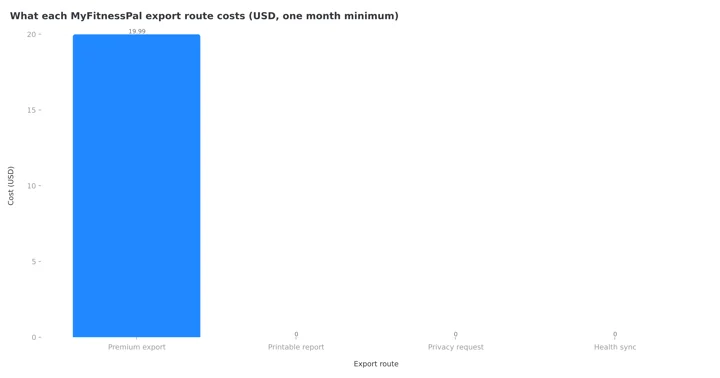
Three of the four routes cost nothing. Only the in-app export needs a paid month.
Whether an app treats your history as portable or as a retention tool is worth weighing before you commit years to it. We compared the major trackers on exactly this in the privacy-first nutrition tracker comparison, and the side-by-side of who lets you leave is in nutrition app data export: which apps let you leave.
Route 4: Carry Your Weight History Through Apple Health or Health Connect
Your weight log is often the part you care about most, and it is the part that moves most easily. MyFitnessPal's Apple Health connection syncs food, exercise, weight and sleep between the two (MyFitnessPal Help), and Health Connect plays the same role on Android.
The practical trick is to treat the health platform as the hub rather than the app. If MyFitnessPal has been writing your weigh-ins to Apple Health all along, that history already sits outside MyFitnessPal, and any new tracker you install can read it on day one. No CSV, no waiting, no Premium.
Check what is actually flowing before you rely on it. On iOS, open Health, go to Sharing, tap Apps, find MyFitnessPal, and look at which categories are switched on. Turning on write access for weight now does not backfill years of old entries, so if this is your plan for the long term, switch it on today rather than the week you decide to leave.
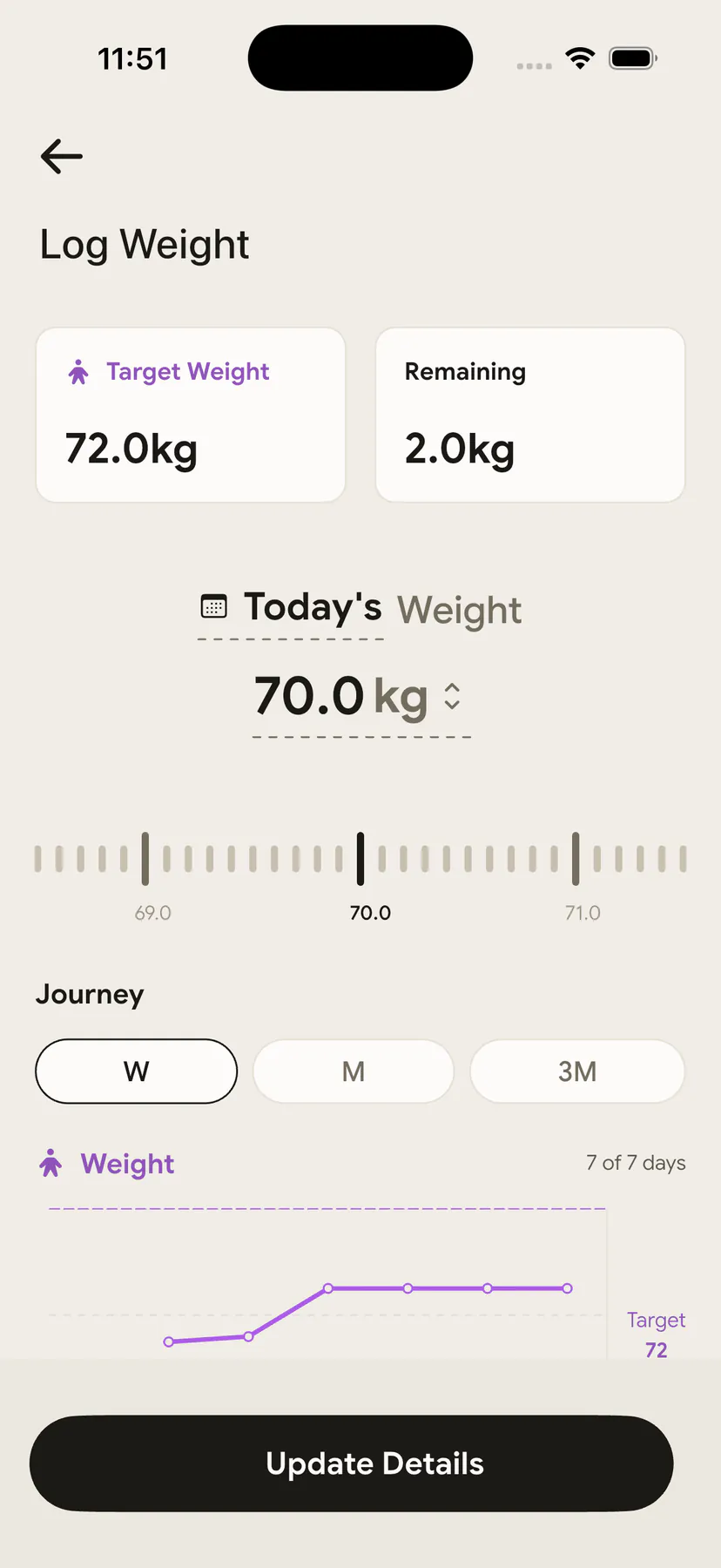
Weight history that lives in Apple Health or Health Connect shows up in a new tracker on day one.
- ✅ What is inside the export
- ✅ Route 1: the Premium export
- ✅ Route 2: the free printable report
- ✅ Route 3: the privacy request
- ✅ Route 4: weight history through the health platform
- ➡️ The one thing none of the routes give back (next)
What the Export Does Not Include ⚠️
This is where expectations break, and it is the item flagged at the top. None of the four routes gives you these back in a reusable form:
- Your custom foods and recipes. They stay in the account. If you built 60 recipes over five years, they do not travel in the CSV.
- Individual food items as separate rows. The nutrition file summarizes by meal, per MyFitnessPal's own community answer.
- Your streak, your badges and your community history. Nothing carries these anywhere.
- A file another app can import directly. No mainstream tracker offers a one-click "import from MyFitnessPal food diary" button. The CSV is for you and your spreadsheet, not for a migration wizard.
Plan around that gap instead of discovering it later. Before you go, take a screenshot of your ten most-logged foods and your saved meals. Rebuilding those ten takes twenty minutes in a new app and covers most of your week. Nobody rebuilds sixty recipes, and nobody needs to.
If You Are Exporting Because You Are Leaving
Most people who search for this are not archiving. They are on their way out. If that is you, the order of operations matters.
Export first, cancel second, delete last. A canceled subscription takes the export feature with it, so pull your files while Premium is still active. And a deletion request is permanent: MyFitnessPal's privacy page describes deletion as removal "across all systems we interact with," which includes the account itself. Do not send that request until your zip file is downloaded and opened.

Files downloaded, subscription canceled, then and only then the deletion request.
Then protect the habit, not the history. A 2026 scoping review of 68 studies found that adherence to calorie-counting apps declines over time regardless of which app it is, and that strong early engagement predicted better long-term adherence and greater weight loss (Dugas et al., 2026). The days right after a switch are exactly when logging stops. An 8-week study of 90 adults found that consistency and frequency of self-monitoring predicted weight loss, while how complete each entry was did not (Payne et al., 2022). So log something every day of the move, even rough entries, while you learn the new screens.
If you have not settled on where you are going, we compared the realistic destinations in the best MyFitnessPal alternatives for 2026.
Should You Buy Premium Just to Export? 💵
People ask this often, usually with irritation. The math is short.
MyFitnessPal Premium runs $19.99 per month or $79.99 per year, and Premium+ runs $24.99 per month or $99.99 per year. The full tier breakdown lives in the MyFitnessPal pricing guide and the feature-by-feature split is in Premium vs Premium+.
One month at $19.99 buys you the export and nothing else you need. Cancel immediately after the files arrive and set a calendar reminder for the renewal date. That is the honest answer for someone who wants clean CSVs today and is willing to pay once for convenience.
The free trial is a second option, with a warning attached. It works, but you must cancel inside the window or you are charged for the year. The mechanics and the exact cancel steps are in the MyFitnessPal free trial and cancel guide.
And if $19.99 for your own numbers annoys you on principle, use Route 3. The privacy request costs nothing and it is your legal right.
Five Common Mistakes
- Exporting before checking sync. Unsynced phone entries are not on the server, so they are not in the file. Check the Sync timestamp first.
- Sending the file to a dead email address. The export goes to the account email. Update it in Email Settings before you tap Export, not after.
- Opening and re-saving the CSV in Excel. Date columns get mangled. Work on a copy, or view it in Google Sheets.
- Deleting the account the same day. Deletion is permanent and MyFitnessPal describes it as removal across their systems. Download, unzip and open the files first, then delete.
- Expecting the file to import somewhere. It will not. Use it as a personal archive and rebuild your top ten foods by hand in the new app.
Keeping the Habit After the Files Are Safe
Your export is a record of what you did, not a plan for what comes next. A 2025 meta-analysis of 11 randomized controlled trials with 1,717 participants found that app-based diet and exercise tracking produced significant weight loss at 4 to 6 months across many different apps (Pujia et al., 2025). The app brand mattered less than whether people kept logging. A 2024 systematic review and meta-analysis found that self-monitoring interventions that returned feedback to users outperformed those that did not, with a pooled effect of d = 0.29 on activity outcomes (Krukowski et al., 2024). That is a fair argument for choosing a next app that responds to what you log rather than one that only stores it.
There is also a quieter reason people want their data out. When researchers asked users what worried them about health apps, the most frequently stated privacy concern was not medical data misuse. It was the fear of receiving more personalized advertisements (Schroeder et al., 2022). Holding your own copy is a reasonable response to that.
Once your files are downloaded and stored, pick your next tracker and start logging the same day. If you want photo-based logging that keeps the daily entry under ten seconds while you settle in, that is what we built NutriScan for. And if you ever want to leave, you can request your data or delete your account yourself, with no support ticket needed.
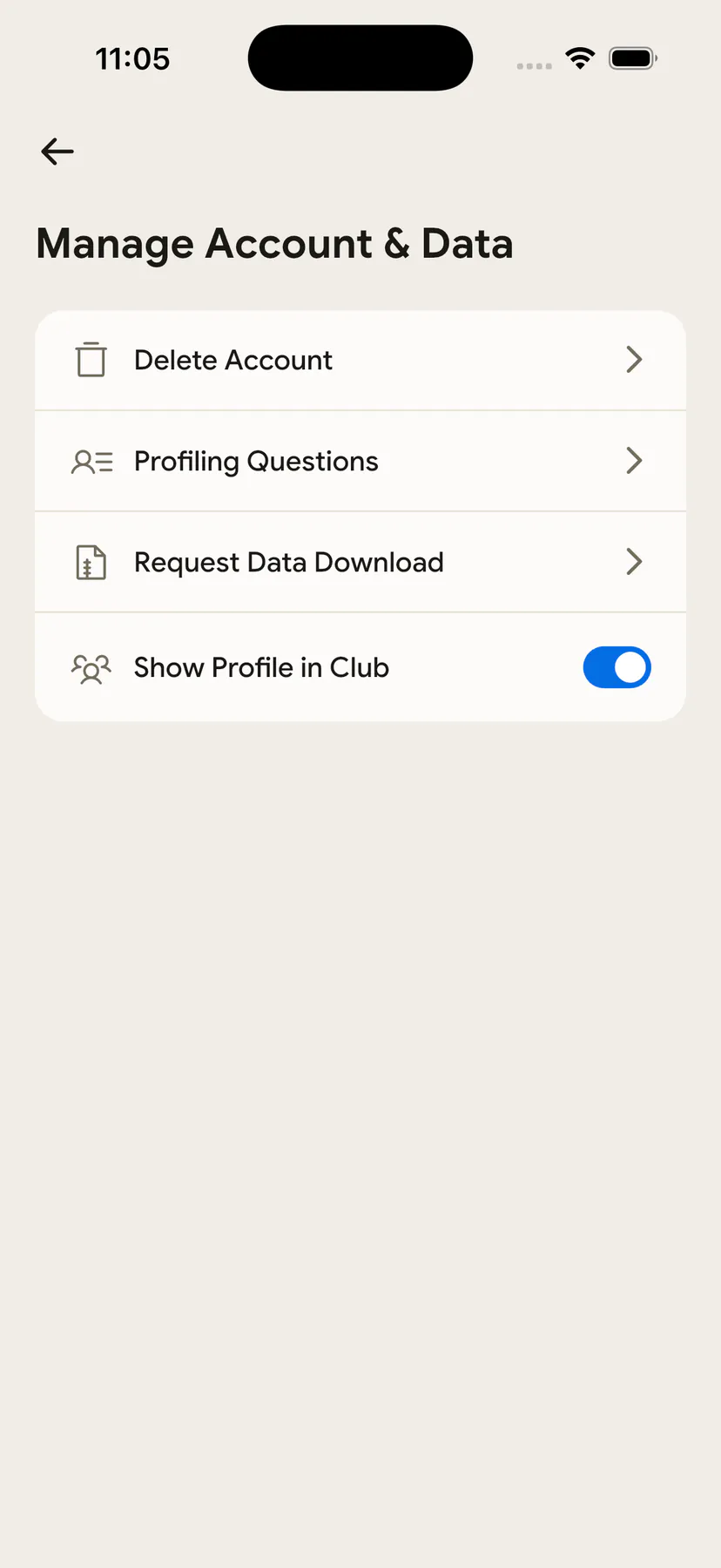
Your data stays yours on every NutriScan plan, Free included.
Frequently Asked Questions
Can I export MyFitnessPal data with a free account? Not with the built-in export tool. MyFitnessPal restricts Data Export to Premium and Premium+ subscribers. Free users can print a full report from the website, share their diary with another MyFitnessPal user, or submit a Transfer Request through the MyFitnessPal Privacy Request Center, which is free and covered by privacy law in most regions.
How long does a MyFitnessPal export take to arrive? The Premium export is emailed, usually within minutes, though it can take longer for a very long date range. A privacy request submitted through the request center takes weeks rather than minutes, because it goes through a compliance process rather than an app feature.
Does the export include every individual food I logged? No. The nutrition file is summarized by meal, not by food item. MyFitnessPal's support staff confirmed in their community forum that there is no way to export individual diary entries to CSV.
Can I import my MyFitnessPal export into another calorie app? Not directly. No mainstream tracker offers a one-click import of the MyFitnessPal food diary CSV. Weight history often moves through Apple Health or Health Connect, and your most-used foods are quicker to rebuild by hand than to convert.
What happens to my data if I delete my MyFitnessPal account? It is removed. MyFitnessPal's Privacy Request Center describes a Deletion Request as deleting your personal information across the systems they interact with, including the account. Export or request your copy before you delete, because there is no undo.