Nutrition App Data Export: Which Apps Let You Leave?
 ChatGPT
  Claude
  AI Mode
  Perplexity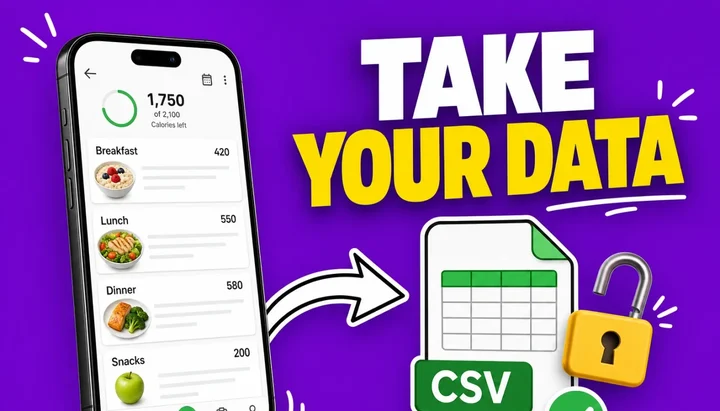
Check one feature before you commit years of food logs to any app: the export button. A 2020 systematic review and meta-analysis of 17 studies found that the pooled dropout rate for health app interventions was 43%, and 49% in real-world observational studies (Meyerowitz-Katz et al., 2020). The same review describes a cohort of 189,770 people using a free diet-tracking app, where more than 86% stopped using it. Most people who start a food diary will one day close it, switch apps, or take a long break.
That day is when export matters. Your food log is a record of what you ate, what you weighed, and what worked. If the app holds it and you cannot take a copy, leaving the app means losing the record. In this guide I compare the export options of five popular trackers, explain what the law actually promises you, and show you how to back up your data before you cancel anything.
Short verdict: MacroFactor and Cronometer give every user a free, in-app, machine-readable export. MyFitnessPal has the most complete file but locks it behind Premium. MyNetDiary ships CSV and PDF reports. Lose It makes you dig through its website.
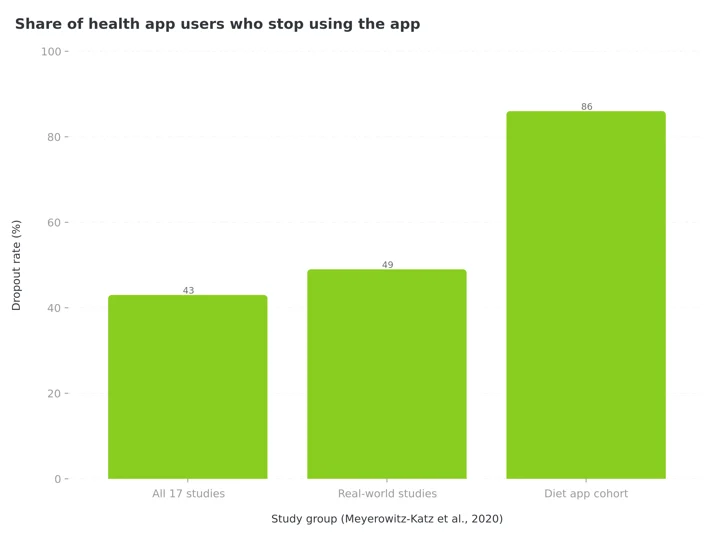 Figure 1: Dropout rates for health app users. In a cohort of 189,770 people on a free diet-tracking app, more than 86% stopped using it (Meyerowitz-Katz et al., 2020).
IMPORTANT
Your data export guide at a glance.
A quick roadmap so you know where this comparison is going.
⏱️ Progress 0/4 • ~0 minutes in • Keep going
⏳ Step 1: The three questions and what the law actually promises
⏳ Step 2: Five apps scored, one by one
⏳ Step 3: What no export file carries, and the neutral backup layer
🔍 The 15-minute backup routine that protects years of logging (revealed near the end)
 Leaving an app should look like this: bags packed, nothing left behind
The Three Questions That Decide This Comparison 🔎
Every app in this guide claims you can get your data. The differences show up when you ask three specific questions.
1. Can you trigger the export yourself, inside the app? There is a large practical gap between a button you tap today and an email request that a support team answers within a month. Self-serve export is the standard to look for.
2. What is actually in the file? Some exports carry your full food diary with calories, macronutrients, and timestamps. Others carry a weekly summary. A file that only holds totals cannot rebuild your history anywhere else.
3. What format do you get? CSV and JSON files open in spreadsheets and can be read by other software. A PDF report is fine for your doctor, but it is a printout, not portable data.
I scored each app against these three questions using the company's own help pages and legal documents, not third-party reviews. What a company writes in its own documentation is a commitment. What a review site says is a rumor.
What the Law Promises, and What Apps Actually Ship ⚖️
If you live in the EU or UK, data portability is a legal right, not a courtesy. Article 20 of the GDPR says you have the right to receive the personal data you provided "in a structured, commonly used and machine-readable format" and to transmit it to another provider without hindrance (GDPR Article 20). The UK regulator lists CSV, XML, and JSON as formats that meet this standard (ICO guidance). The European Data Protection Board adds that the format must allow you to reuse the data in another service (EDPB guide).
There is also a deadline. Under Article 12, a company must act on your request within one month of receiving it, extendable by two further months for complex requests (GDPR Article 12).
The practical catch: the law guarantees a process, not a button. An app can be fully compliant while making you email support, wait weeks, and receive a file you did not choose. That is why this comparison focuses on what each app ships inside the product. A legal right you have to request is a backup plan. A button is a feature.
TIP
If an app has no export button, a written request citing "data portability" gets a faster, more complete answer than "can I have my data?" Support teams have a process for the legal phrase.
IMPORTANT
Checkpoint: here's where you are right now.
Quick status update so you always know the next best move.
⏱️ Progress 1/4 • ~2 minutes in • Keep going
✅ Step 1: The three questions and the legal floor (done)
👉 Step 2: Five apps scored, one by one (you're here)
⏳ Step 3: What no export file carries, and the neutral backup layer
🧩 The 15-minute backup routine (coming soon)
The Export Scorecard: Five Apps Side by Side 📊
| App | Self-serve export | Free or paid | What you get | Format |
|---|---|---|---|---|
| MacroFactor | Yes, in-app | Free | Granular per-category files or a quick progress summary | Spreadsheet |
| Cronometer | Yes, in account settings | Free | Diary entries, exercises, biometrics, notes, nutrition summaries | CSV |
| MyFitnessPal | Yes, but Premium only | Paid | Meal nutrition, progress history, exercise history | 3 CSV files by email |
| Lose It | Partial, web app only | Free | Reports and data download from the website | Spreadsheet |
| MyNetDiary | Reports in app, portability in terms | Mixed | PDF and CSV reports, portability on request | PDF, CSV |
Two things stand out in this table. First, the two apps with the strongest free export, MacroFactor and Cronometer, are both paid-subscription businesses. Second, the app with the largest user base puts self-serve export behind its paywall. The rest of this guide goes through each app in detail.

MacroFactor: Free, In-App, and Granular ✅
MacroFactor treats export as a normal feature, not a legal chore. The path is short: tap More, find the section called Data Management, and tap Data Export (MacroFactor help).
You get two modes. The Granular Export tab produces individual spreadsheets for the specific data types you select. The Quick Export tab produces one progress spreadsheet that includes expenditure, weight trend, scale weight, calories, macros, and your primary nutrition targets, over a time frame you choose.
The detail I respect most is placement. The same Data Management area links directly to the article on how to permanently delete your account and data (MacroFactor deletion guide). Export and deletion sit side by side, documented in plain language. Custom recipes and custom foods have their own sharing system, so they can move to another MacroFactor user directly (recipe sharing).
If you want the full picture of the app behind the export button, read my review of whether MacroFactor is worth paying for. For this specific comparison, it sets the standard: free, self-serve, granular, and honest about deletion.
Cronometer: Free CSV Export With Real Detail 🧪
Cronometer's export lives in the Account tab, in a section the company frames with an unusually direct sentence: "We respect your right to access your data, as well as your right to be forgotten" (Cronometer account settings).
The Export Data tool produces a CSV file. Depending on the export type you pick, you can export diary entries, exercises, biometrics, notes, and nutrition summaries, with a date range dropdown to control the period. The Daily Nutrition export has an option called "Include diary group rows." Turn it on and the file breaks your nutrition down meal by meal. Turn it off and you get daily totals only.
Because Cronometer tracks a very wide nutrient panel, that CSV is dense. In my Cronometer vs MyNetDiary comparison, I noted that the export carries the full nutrient fields per entry, which makes it the best file in this guide for anyone who cares about micronutrients.
The same settings page also documents bulk deletion of diary data by time range, and full account deletion, with a plain warning that deleted data cannot be recovered. Like MacroFactor, Cronometer keeps export free on every tier.
MyFitnessPal: Full Export Exists, but It Is Behind the Paywall 🔒
MyFitnessPal has a genuinely good export. The problem is who gets it. The company's own help page states that data export is available to Premium and Premium+ subscribers, while free users can print a report or share their diary with a trainer, doctor, or nutritionist (MyFitnessPal export FAQ).
If you do pay, the export is thorough. Every export arrives by email as a zip folder holding three CSV files. Meal Level Nutrition Details covers calories, macronutrients, micronutrients, and timestamps for your logged foods, plus food notes. Progress History covers logged measurements such as weight, neck, waist, and hip entries. Exercise History covers workouts, step counts, and daily calorie burns. You cannot pick which of the three files to include; you can only set the date range. The exact taps for iOS, Android and web, plus the two free routes, are in how to export your MyFitnessPal data.
Think about what the paywall means in practice. A free user can spend three years logging meals, and the day they want their diary as a file, the answer is a printable report or a subscription (free sharing options). Your own history becomes an upgrade trigger. If you are already subscribed, run the export while your subscription is active, before you cancel. I cover the wider value question in my MyFitnessPal Premium+ review.
WARNING
MyFitnessPal exports arrive by email, not as an in-app download. Check your spam folder, and do not cancel until the zip is open on your computer.
Lose It: The Least Documented Export of the Five 🕵️
Lose It is the hardest app in this guide to score, and that is itself a finding. Its privacy policy summary states that "users may request copies of personal information," and that users can delete certain information and stop processing (Lose It privacy policy). That is the request-based legal route.
On the product side, long-time users export through the website rather than the phone app, using the Reports section and a data download page on loseit.com. The phone app, which most people actually use, does not offer a clear bulk export, and the company's help pages do not document one in the direct way MacroFactor and Cronometer do.
My advice for Lose It users is simple. Log in on a computer, not your phone, and look at the Reports area of the website for spreadsheet downloads. If you cannot find what you need, send a written request for a copy of your personal information under the privacy policy, and keep a copy of the request. The data path exists. It is just not treated as a feature, and you should not wait until the week you cancel to learn that.
MyNetDiary: Portability in the Terms, Reports in the App 📄
MyNetDiary writes the right words in its legal documents. Its terms state that you have a right to transfer or receive a copy of your personal data "in a usable and portable format; structured, commonly used, machine-readable" (MyNetDiary terms). That is GDPR language, adopted globally in their terms.
Inside the product, day-to-day data access runs through reports. The app generates PDF and CSV format reports of your food diary and nutrient breakdowns, and the company's own comparison content confirms both formats (MyNetDiary comparison page). Reports are aimed at sharing with a dietitian or doctor rather than at bulk migration, so treat the CSV report as your export and the portability clause as your fallback request route.
MyNetDiary's strength has always been detailed, ad-free tracking, which I covered in MyNetDiary vs MyFitnessPal. On export specifically, it lands in the middle of this field: better documented than Lose It, less self-serve than Cronometer. Anyone leaving MyFitnessPal for it can follow the MyFitnessPal to MyNetDiary switching guide.
IMPORTANT
Checkpoint: halfway through.
Five apps scored. Now the part most people learn after they switch.
⏱️ Progress 2/4 • ~5 minutes in • Keep going
✅ Step 1: The three questions and the legal floor
✅ Step 2: Five apps scored (MacroFactor and Cronometer lead, MyFitnessPal paywalled, Lose It undocumented)
👉 Step 3: What no export file carries, and the neutral backup layer (you're here)
🧩 The 15-minute backup routine (almost there)
What Your Export File Will Not Carry 📦
Even a perfect export does not move everything, because a food diary is more than rows of data.
- Custom foods and recipes often need separate handling. MacroFactor shares them app-to-app between its own users; in most other apps they are lost when the account closes.
- Favorites and frequent foods are convenience lists, and they rarely appear in export files. Your fast logging speed resets in a new app.
- Streaks and badges do not transfer anywhere. If motivation features matter to you, expect to start at zero.
- Verified database matches are app-specific. Your exported file says "chicken curry, 420 kcal," but the new app will match that name to its own database entry, which may carry different numbers.
None of this is a reason to skip exporting. It is a reason to treat the export as your archive, not as a transfer tool. The file protects the record of what you ate and what you weighed. Rebuilding daily convenience in a new app takes a week or two of normal logging.
Apple Health and Health Connect: The Neutral Backup Layer 🩺
There is a second, quieter portability route that works even when an app's export is weak: the phone's own health platform. Most trackers in this guide can write calories, macros, and weight to Apple Health on iPhone or Health Connect on Android.
Apple Health has its own full export. In the Health app, tap your profile picture, then tap Export All Health Data, and you receive your complete health history as an XML file (Apple Support). That includes every calorie and weight entry your nutrition apps wrote there over the years.
The limits are real. Health platforms store totals, such as 2,100 kcal and 140 g protein, not food names or portion notes, so they cannot rebuild a readable diary. But as a weight-history backup they are excellent, because the data survives every app switch automatically. My rule: keep health-platform sync on from day one in any tracker, so a neutral copy of your numbers accumulates in the background whether or not you ever press an export button.
 The save button still matters. Press it before you cancel, not after.
How to Back Up Your Food Data Before You Cancel 💾
You have been patient. This routine takes about fifteen minutes. Do it while your account is still active and, if the app paywalls export, while your subscription is still running.
- Run the biggest export the app offers. Choose the widest date range available, ideally "all time." In MacroFactor use Granular Export and select every category. In Cronometer run each export type one by one.
- Open every file before you cancel. A surprising number of people discover a truncated or empty file after their account is closed. Check that the date range is complete and the columns hold real values.
- Export your health-platform history too. Use Export All Health Data on iPhone for the neutral XML copy of weight and calorie totals.
- Photograph what has no export. Custom recipes, favorite foods, and target settings can be captured as screenshots in five minutes. Crude, but it is faster than retyping from memory.
- Store the files somewhere permanent. Move the zip out of your email into cloud storage or a computer folder named by app and date, for example "loseit-export-2026-08."
- Then cancel or delete. Deletion is usually irreversible and backups rotate out on the company's schedule, so the export must come first, every time.
If the app has no self-serve export, replace step 1 with a written portability request, and note the date: under GDPR rules the company has one month to respond.
IMPORTANT
Checkpoint: the payoff is done.
⏱️ Progress 3/4 • ~7 minutes in • Keep going
✅ Step 3: What export files miss, plus Apple Health and Health Connect as the neutral layer
✅ The 15-minute backup routine (revealed: export, open, health export, screenshot, store, then cancel)
⏳ Last: six habits, where NutriScan stands, and the verdict
Six Habits That Keep Your Data Yours 🔑
- Check the export page before you commit to an app, not after. Search "[app name] export data" and read the company's own help article. Five minutes of reading protects years of logging.
- Export on a schedule, not only when you leave. A quarterly export means a dead phone, a locked account, or a discontinued app costs you three months of data at most.
- Prefer CSV or JSON over PDF whenever the app offers a choice. Machine-readable files stay useful; printouts only stay readable.
- Keep health-platform sync on permanently. It is the only backup that runs without you remembering it.
- Do not assume paid means portable. In this guide the free exports from MacroFactor and Cronometer offer better access than the paywalled one from MyFitnessPal, and export quality did not track price anywhere.
- Save the confirmation when you request data by email. If a company misses the one-month window, your dated request is what makes a follow-up effective.
Where NutriScan Stands on Export 🟢
NutriScan publishes this post, and we make a competing app. This section gets the same three questions as everyone else, answered from our own documentation.
Inside the app today, the self-serve export is narrow: you can export your fasting history as a CSV file from the Fasting tab. There is no button that downloads your full meal history yet, and I will not pretend otherwise. Meal data flows to Apple Health and Google Fit if you enable sync, so the neutral backup layer works from day one.
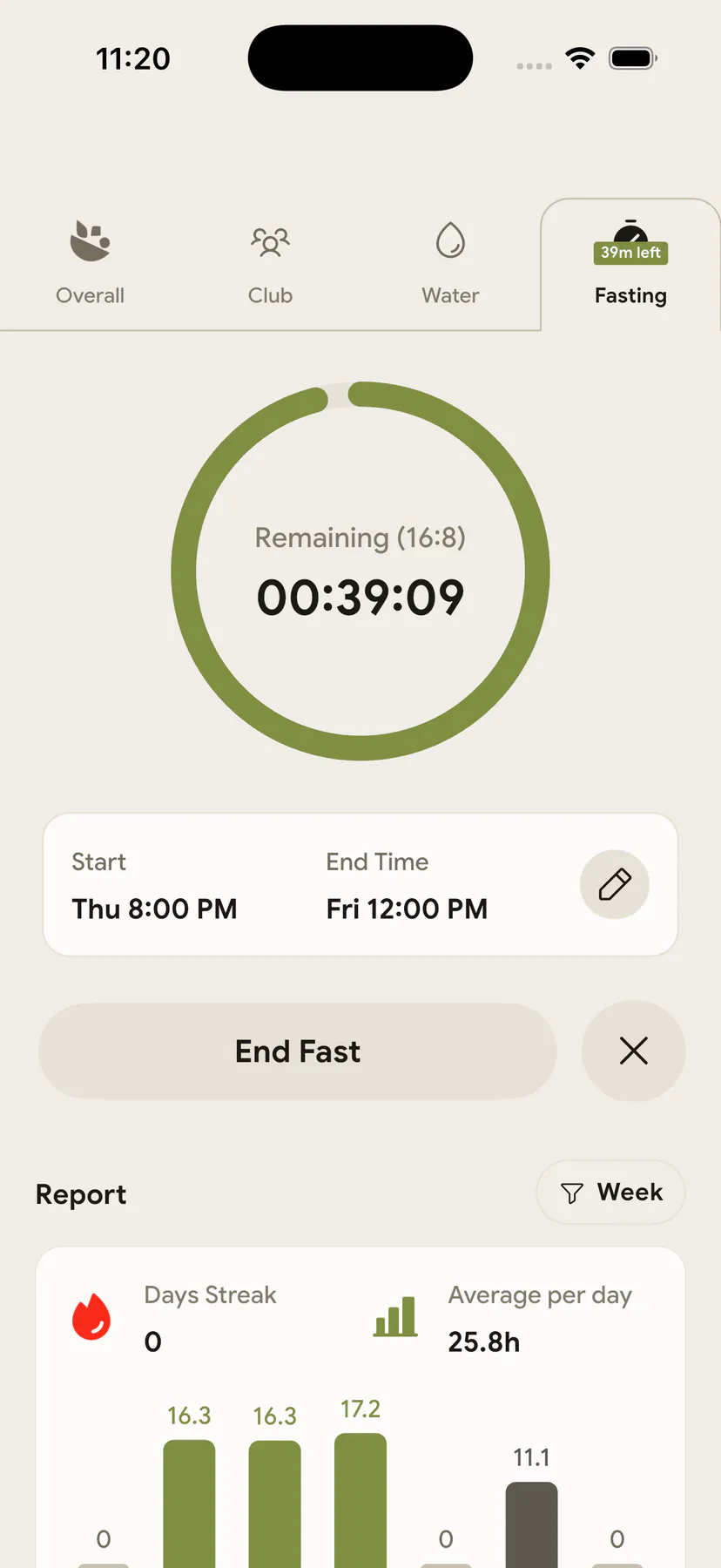
Fasting tab: the one self-serve CSV export NutriScan ships today
The full-data route is a request. Our privacy policy gives every user the right to access and portability: you can ask for a copy of your data by emailing [email protected] or through Profile, then Contact Us, in the app.
So my honest placement: NutriScan's full-data route is a request, not a button, and the fasting CSV and health sync are real, but MacroFactor and Cronometer remain the reference for one-tap full export. If you are leaving NutriScan, send the data request before you delete your account. For a wider look at how trackers handle your data, see the best privacy-first nutrition trackers.
The Verdict 🏁
If export weight matters to your choice of tracker, the ranking from this comparison is short. MacroFactor and Cronometer share first place: both give every user a free, self-serve, machine-readable export and document deletion next to it. MyNetDiary takes third with real CSV and PDF reports plus clean portability language in its terms. MyFitnessPal has the most complete file of the five but ties it to a subscription, so it ranks by what free users experience: fourth. Lose It ranks last, not because the data is unreachable but because reaching it is undocumented work.
The deeper lesson applies to every app, including ours. A 43% dropout rate means switching is the normal life cycle of a food diary, not a failure case (Meyerowitz-Katz et al., 2020). Companies know this. An export button is a company telling you it expects to earn your renewal. A missing one is a company hoping you never ask for a copy.
IMPORTANT
Recap: everything you covered in this guide.
You finished it. Save this for the week you switch apps.
⏱️ Progress 4/4 • ~9 minutes in • Nicely done
✅ Step 1: Three questions (self-serve? what's in the file? what format?) and the GDPR one-month floor
✅ Step 2: MacroFactor and Cronometer lead, MyNetDiary third, MyFitnessPal paywalled, Lose It undocumented
✅ Step 3: Recipes, favorites and streaks don't move; Apple Health and Health Connect keep a neutral copy
✅ The 15-minute backup routine: export, open, health export, screenshot, store, then cancel
For a worked example of an export-then-rebuild move, see How to Switch From MyFitnessPal to Cronometer. The same plan for a simpler calorie-budget destination is in How to Switch From MyFitnessPal to Lose It.
Frequently Asked Questions ❓
Can I export my data from MyFitnessPal for free?
No. MyFitnessPal's help pages state that file export is available to Premium and Premium+ subscribers only (MyFitnessPal support). Free users can print a report or share their diary with a trainer or doctor. If you are subscribed and planning to cancel, export first.
Does the law force apps to give me my data?
In the EU and UK, yes. GDPR Article 20 gives you the right to your data in a structured, commonly used, machine-readable format, and Article 12 requires a response within one month (GDPR Article 20). Many apps, including MyNetDiary and NutriScan, extend this language to all users in their terms or privacy policies. The law guarantees the process; only the app decides whether there is a button.
Which nutrition app has the best free export?
MacroFactor and Cronometer. Both offer free, self-serve export for every user: MacroFactor through granular per-category spreadsheets in its Data Management menu, Cronometer through CSV exports of diary entries, biometrics, exercises, notes, and nutrition summaries with a date-range selector.
Can I import my exported file into a new app?
Usually not directly. Most trackers do not read competitor CSV files, so your export works as an archive rather than a transfer. Weight and calorie totals move automatically if both apps sync with Apple Health or Health Connect. Custom recipes and favorites almost always need manual rebuilding in the new app.
How do I export my NutriScan data?
Fasting history exports as a CSV directly in the app. For everything else, the privacy policy gives you the right to request a copy of your data: email [email protected] or go to Profile, then Contact Us, in the app.
Your Data Should Outlive Your App 🚀
Every food log is a small research project on yourself, and the value compounds only if the record survives. Before you commit to any tracker, find its export page. Before you leave any tracker, use it. The fifteen minutes you spend downloading files is the cheapest protection in nutrition tracking.
And whichever app you use next, start it the same way: sync on, export page checked, and a clear path to take your data out. If you want a tracker that logs meals in seconds with a photo, NutriScan is free to try, and now you know exactly how to take your data with you if you ever change your mind.